

 AI Summary
VB-GRAMG Job Card Search: MGNREGA has been officially changed to VB-GRAMG and if you want to search your job card or download job card list of your state, district or village, you can visit the new official portal of the scheme at vbgramg.dord.gov.in.
MGNREGA or Mahatma Gandhi National Rural Employment Guarantee Act, enacted in 2005, was a landmark social security scheme in India which was renamed to VB-GRAMG in 2026 and was 100 days of wage-based employment in a financial year was increased to 125 days.
VB-GRAMG is one of the world's largest work guarantee programs, aiming to reduce rural poverty and unemployment in India. Every year, crores of people from rural areas get their job cards created, work under the scheme and earn their livelihood.
Also Check: VB-GRAMG Wage Rates
VB-GRAMG Job Card Search @ vbgramg.dord.gov.in
There is no direct option to enter your name or job card number to get search job card details, you have to follow the below process.
STEP 1: Visit the official portal
Visit the official web portal vbgramg.dord.gov.in by clicking at this link.
STEP 2: Click on your State report
Click on the "State Report" link in the main menu under Analytics and Reports section.
STEP 3: Select your criteria
After clicking on the State Report link, you will see a page similar to below.

STEP 4: Select Your District, Block, Gram Panchayat
On the next page, click on the name of your district, then block, then Gram panchayat and then click on the "Job card/Employment Register" link as shown in the below image.

Now after clicking the job card link, you will see the list of Job cards as shown in the below image.

Now you can find your job card by using your job card number or your name. On the desktop or laptop, you can just use the find shortcut ctrl+f and type your name or job card number. If you are browsing through the mobile phone, you need to tap on the three dots menu in the top right corner of your browser and the tap find in page as shown in the below image.
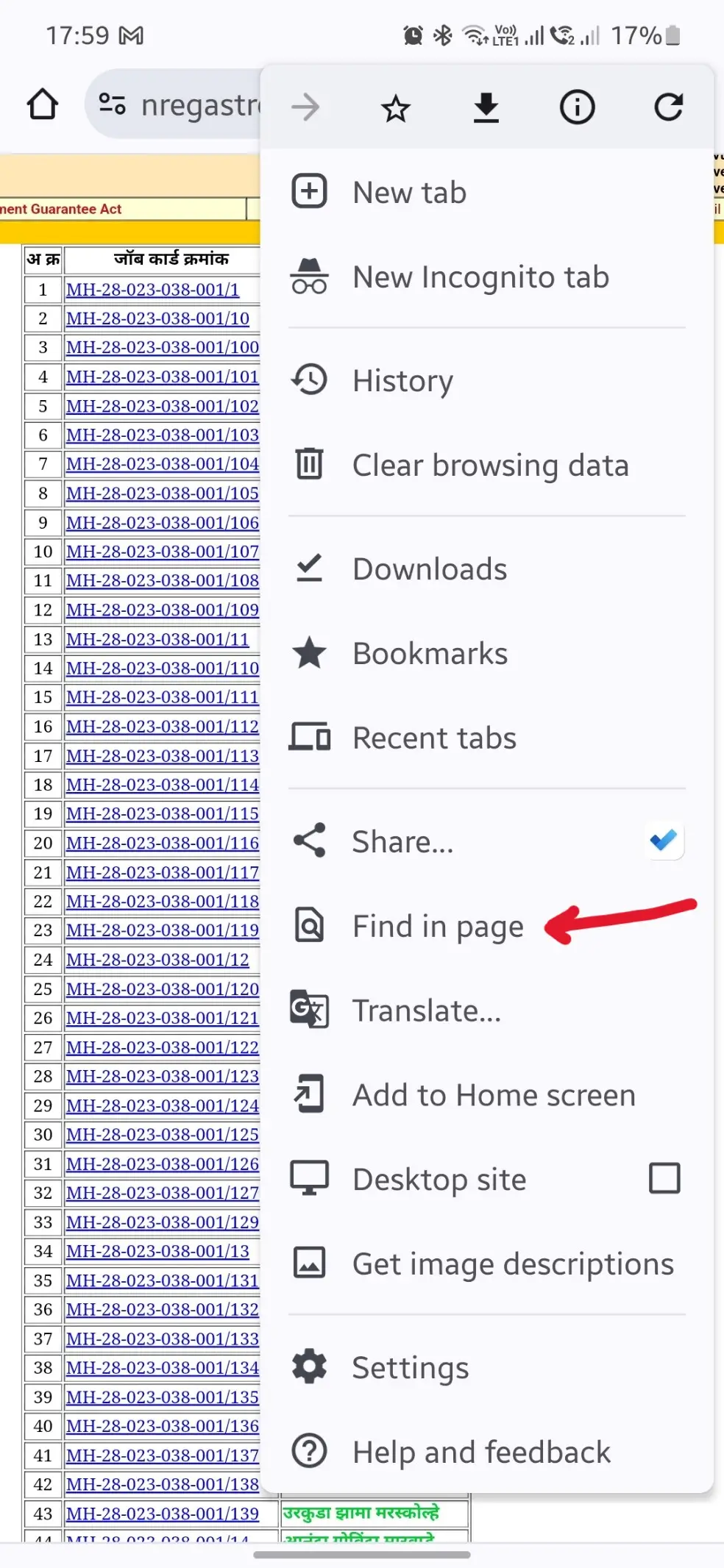
In the last step, just type your name and you can see all the job cards entries matching your entered name. This is how you can search job card on official website.
Download Job Card PDF
If you want to download PDF of job card then click on your Job card Number, and a page similar to below one opens.

You can use the print command on your computer laptop by pressing the "ctrl+p" buttons or select print from the browser menu. You need to select Save as PDF in the print dialog which opens after the print command, as shown in the below image.

By clicking the "Save" button, you can save the PDF of job card to your computer and then later get it printed on the physical paper.
Download Job Card PDF on Mobile
If you are using mobile phone (Android), then you can tap the three dots menu in your browser in the top right side, then tap on Share menu and look for "Print" in the sharing options, in some phones, you may find it as in below image.

After finding the print option in the sharing menu, tap on it and save the file as PDF at your desired location, as shown in the below image.
